
How to take screenshots in iPhone !
screenshots in iPhone
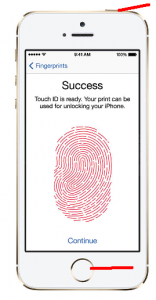
- Turn on your iPhone. Just hold down the button on the top right of the phone and wait for the white Apple logo to appear.
- Find the image you want to capture. You can choose any image from your email, photos, home screen, or from anything you find online.
- Find your Sleep/Wake button. This is the button on the top right of your phone. It’s the button you use to turn your phone on and off.
- Find your Home button. Your home button is the round button centered on the bottom of your iPhone. It has a picture of a white square in the center.
- Hold down the Sleep/Wake and Home buttons at the same time and release them. If you were able to take a screenshot, then you should hear a camera shutter sound and see a white screen.
- You only need to hold the two buttons down for one second for this to work.
- You don’t have to release the buttons at the exact same time.
- Check your Camera Roll to make sure that you captured the image. To find your Camera Roll, simply click on the “Photos” application on your home screen. Then click on “Camera Roll,” which should be listed as your first album. Your screenshot should be the last image in this album.
- If you weren’t able to take the screenshot, try to do it again and hold down the buttons for a second longer this time.